
Hazel alternative for Mac: Folder automation with Rulr
Looking for a Hazel alternative? Use visual Rulr Rules to sort Downloads, organize PDFs, and rename new files. Compare workflows, pricing, and limits.
Is Rulr a suitable Hazel alternative?
Rulr is worth considering if you want to organize newly arriving files through visual When → If → Do Rules, especially when file handling is one part of your wider Mac automation. Start with a specific task, such as moving PDF downloads to a reading folder, and check the Rule’s configuration before replacing an existing routine.
Hazel specializes in file organization through folder conditions and actions. Rulr offers a visual alternative for the specific sorting and renaming tasks below, alongside other Mac automations.
Hazel vs Rulr for folder automation
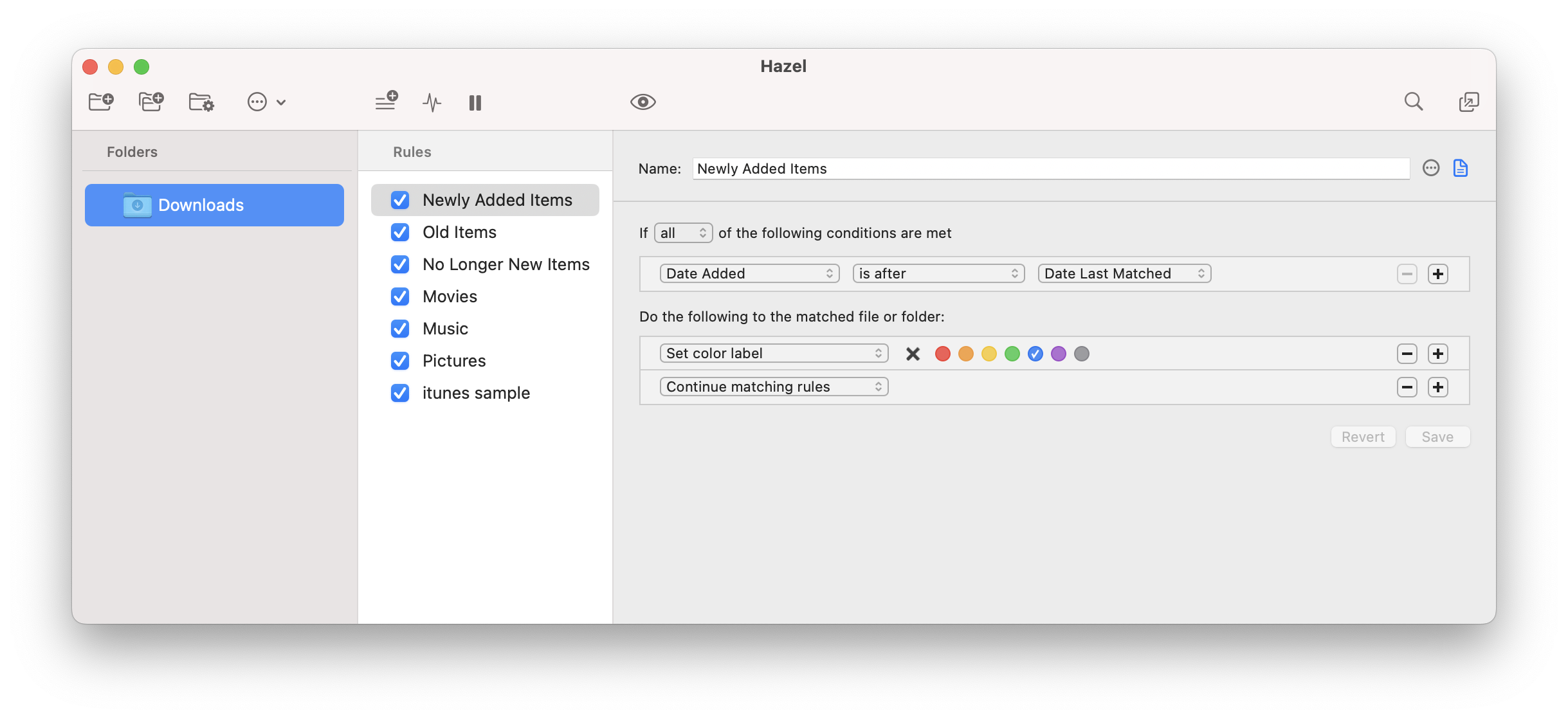
Hazel: Folder conditions and actions
Hazel applies conditions and actions to items in a watched folder. Here, the selected rule labels newly added Downloads items before continuing to other rules.
Rulr: Visual When → If → Do Rules
In Rulr, the starting event is explicit: a Folder Contents Changed Trigger supplies the item path and name, Conditions choose a branch, and Actions move or rename that item. Inspect Mode lets you review the path taken and the step results on the Rule canvas.
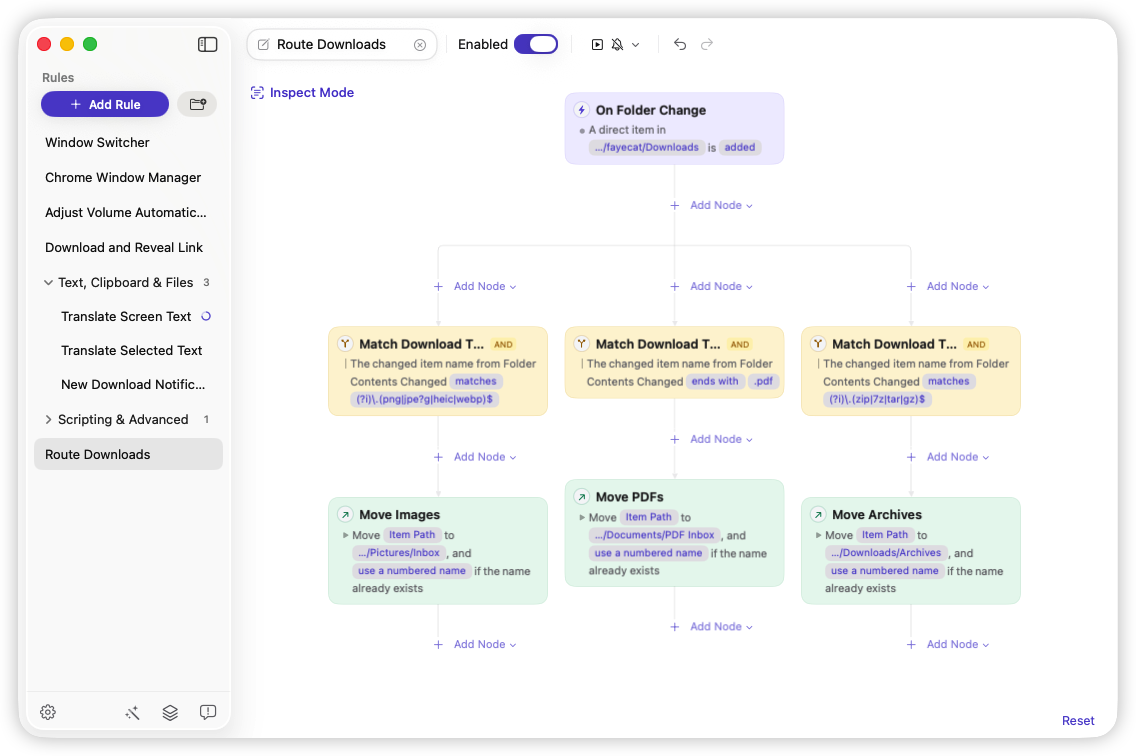
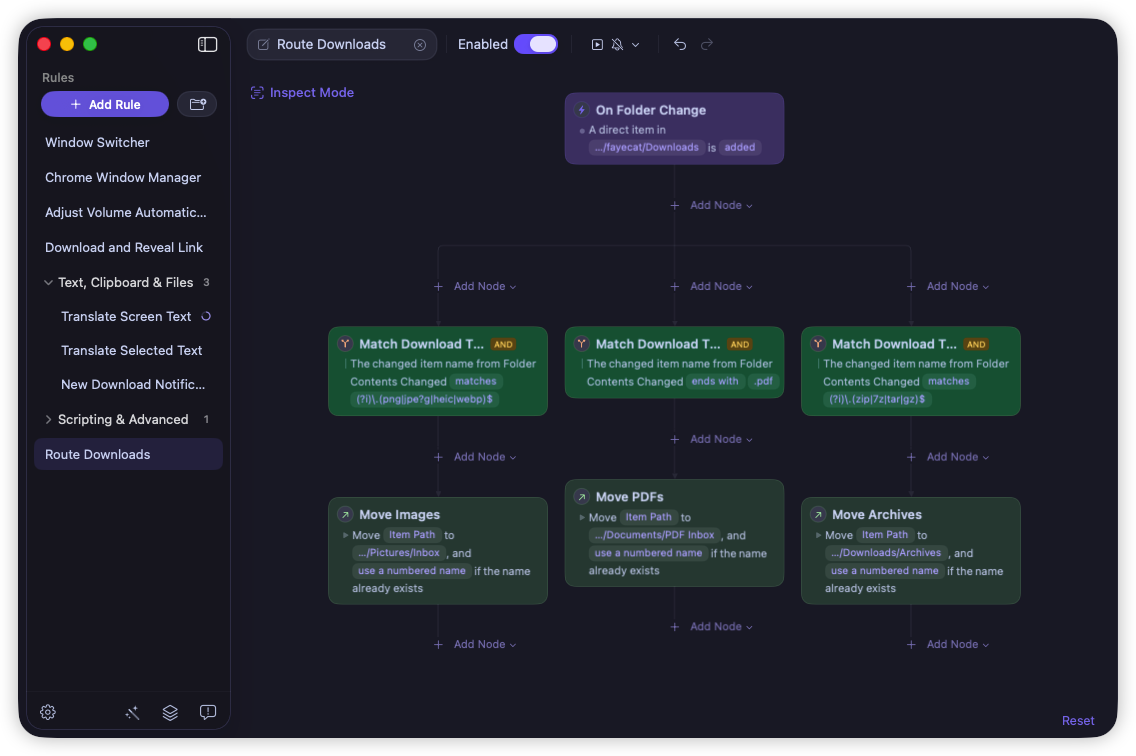
The Route Downloads Rule in Rulr: a new item starts the flow, and three filename branches move matching images, PDFs, and archives to their destination folders.
Compare the file workflows
| Task or requirement | Hazel | Rulr examples in this article |
|---|---|---|
| Route new files | Folder rules can match attributes and move matching items | Sort Downloads branches by filename extension and moves new items |
| Rename files | Rename supports patterns and configurable counters | Rename New Files starts with a literal replacement name and numbered-name conflict handling |
| Match document contents | Contents conditions can match document text, including text recognition where supported | Organize Downloaded PDFs checks the filename suffix, without reading the PDF |
| Process subfolders | Explicit subfolder processing can apply rules inside folders | The supplied folder watchers handle direct children only |
| Combine with other Mac tasks | File rules can include scripting and integrations | Rules can also start from hotkeys, app events, schedules, and devices |
Hazel’s official manual covers its file conditions and actions. The Rulr column describes the linked samples; check their limits against the workflow you want to replace.
Sort Downloads into separate folders
Use Sort Downloads Automatically on Mac when images, PDFs, and archives arrive in the same inbox but belong in different destinations.
When: A direct item is added to the watched Downloads folder. If: Its filename matches the image, PDF, or archive branch. Do: Move the event’s item path to that branch’s destination.
The sample recognizes PNG, JPEG, HEIC, and WebP image names; .pdf documents; and ZIP, 7z, TAR, and GZ archive names. An unrelated text file does not match those branches. It does not unpack an archive or classify a document by its contents.
After import, choose the source and all three destination folders. The sample uses Pictures/Inbox, Documents/PDF Inbox, and Downloads/Archives as starting paths; select locations that exist on your Mac. Review the numbered-name conflict option before enabling it.
If replacing a Hazel sorting rule, check that Rulr’s filename filters, destinations, and conflict settings produce the same result you need.
The Rule Detail contains the preview, setup steps, permissions, and direct import link: configure Sort Downloads.
Move new PDF downloads to one destination
If you only want to keep PDFs out of Downloads, start with Organize Downloaded PDFs. Its single condition and destination make the flow easier to review than a three-branch router.
When: A direct item is added to the watched folder. If: Its name ends in .pdf. Do: Move that item’s path to the selected PDF destination.
Choose a destination different from the watched folder: both paths initially point to Downloads in this sample. Then try a disposable PDF and a non-PDF file to check both outcomes.
This is filename-based routing: it does not identify invoices, extract due dates, or validate PDF contents. It does not replace a Hazel workflow that depends on document-content matching.
Rename files as they arrive
Rename New Files provides a starting point for an intake folder where incoming items need a consistent name.
When: A direct item is added to the watched folder. Do: Pass its item path to Rename File or Folder. The sample has no Condition.
The configured replacement is the literal text Processed File, with numbered names for conflicts. Change it before enabling the Rule. Add supported Variables if you need a dynamic value; the supplied example is not a date-based or project-based naming scheme.
For an existing naming pattern, compare a few expected filenames with Rulr’s output. This sample does not batch-rename existing files or filter out folder additions.
Extend the workflow when you need another step
Two related Rules cover other folder tasks:
- Archive Screenshots moves newly added files whose names match a screenshot pattern. Choose the actual capture and archive folders, and check the pattern against your screenshot names. Here, “archive” means moving files to a folder, not creating ZIP files.
- Watch a Folder and Run a Shortcut starts an existing Apple Shortcut when an item arrives. Select the Shortcut after import. If it expects the changed file as input, configure that connection; the sample does not pass the item path automatically.
Browse Mac file automation Rules to choose a task, or use the Folder Contents Changed reference to review the event inputs and outputs before extending a Rule.
Cost and setup requirements
Rulr has a free version, but folder monitoring and the file moving or renaming Actions used here require Pro. The optional Pro purchase is US$35.90 one-time; see the Pro overview for the current offer. Downloading the free app alone does not unlock these file workflows.
The Noodlesoft store lists Hazel 6 from $42; check current license options when comparing costs.
AI Builder is optional in Rulr. You can import and edit these Rules visually without an AI connection. If you choose to build through conversation, connect your own supported provider and API key; the Pro purchase does not supply that connection. The AI Builder guide explains the process.
Both the source and destination folders must be accessible to Rulr. These samples respond to added items, and that event is not a guarantee that a browser has finished writing a download. Test the browsers and download tools you normally use before relying on automatic moves.
Evaluate one task before switching
Pick the smallest workflow that represents your needs. Use a temporary folder and disposable files, configure the destination and conflict behavior, then check a matching file, a nonmatching file, and a repeated filename. Inspect the resulting paths and names in Finder as well as the run details in Rulr.
While comparing tools, keep only one automation responsible for moving or renaming the same test files. Otherwise, the first tool to handle an item can change what the other one sees.
Keep existing workflows until their replacements are verified. These Rulr examples cover file routing and renaming, not Hazel’s App Sweep or Trash management, and do not migrate a Hazel rule library.
Frequently asked questions
Can Rulr replace Hazel for sorting Downloads?
Rulr’s Sort Downloads Rule can move new images, PDFs, and archives into separate folders. It matches filenames and requires Pro folder monitoring and file Actions. It is an alternative for that specific task, not a replacement for every Hazel workflow.
Are these file automation Rules free?
Rulr has a free version, but the folder monitoring and file moving or renaming used in these examples require Rulr Pro. AI Builder is optional; importing and editing a Rule does not require an AI connection.
Will these Rules organize files already in a folder?
No. These samples respond to newly added direct items in a watched folder. Importing and enabling them does not sort an existing collection or recursively process subfolders.
Choose your first file Rule
Start with the PDF example for one destination, the Downloads router for several file types, or the renaming example for a controlled intake folder. Each Rule Detail provides a preview, configuration instructions, and an import link. The file workflows in this comparison require Rulr Pro.