
How to Build Mac Automations with AI
Describe a task and use Rulr AI Builder to turn it into a visual Mac automation. Follow one Rule from creation and review to refinement and testing.
Tell Rulr what you want automated. AI Builder helps turn your request into a visual Rule that you can read, edit, and run again whenever its Trigger occurs.
For this guide, the task is simple: when you launch Zoom on a weekday, set the system volume to 30% and open a meeting-notes file. We will build that Rule, check its settings, and refine it to run only during work hours.
Describe → Build → Review → Refine → Run
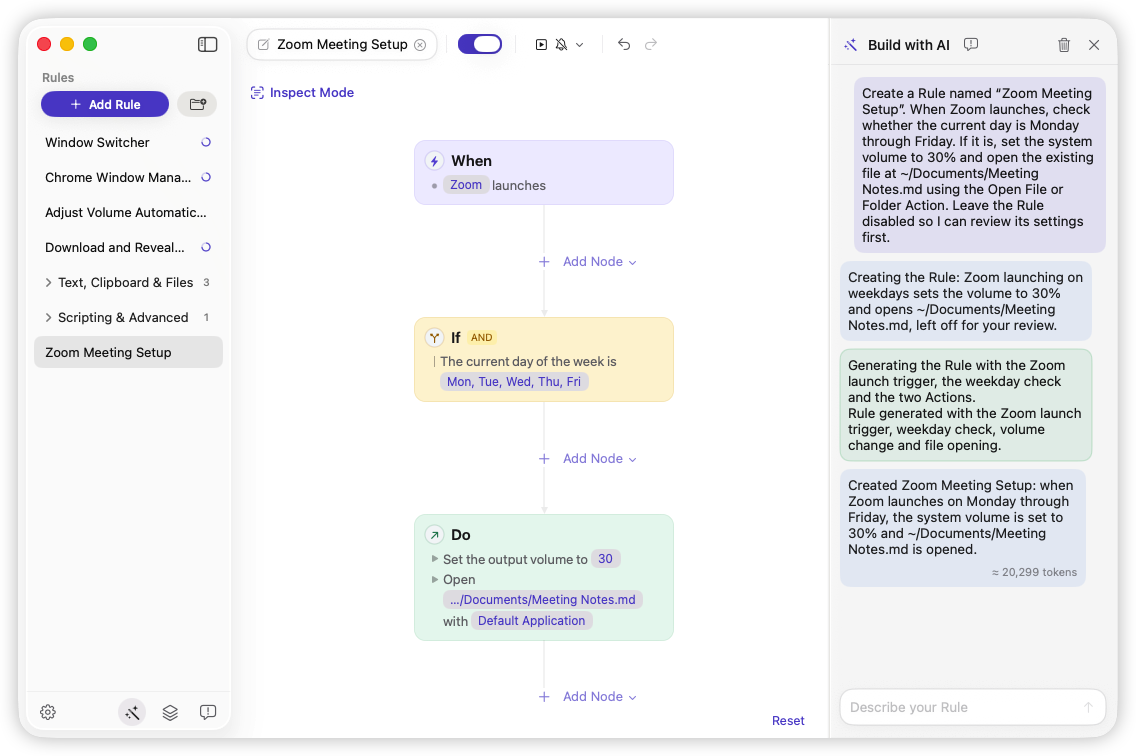
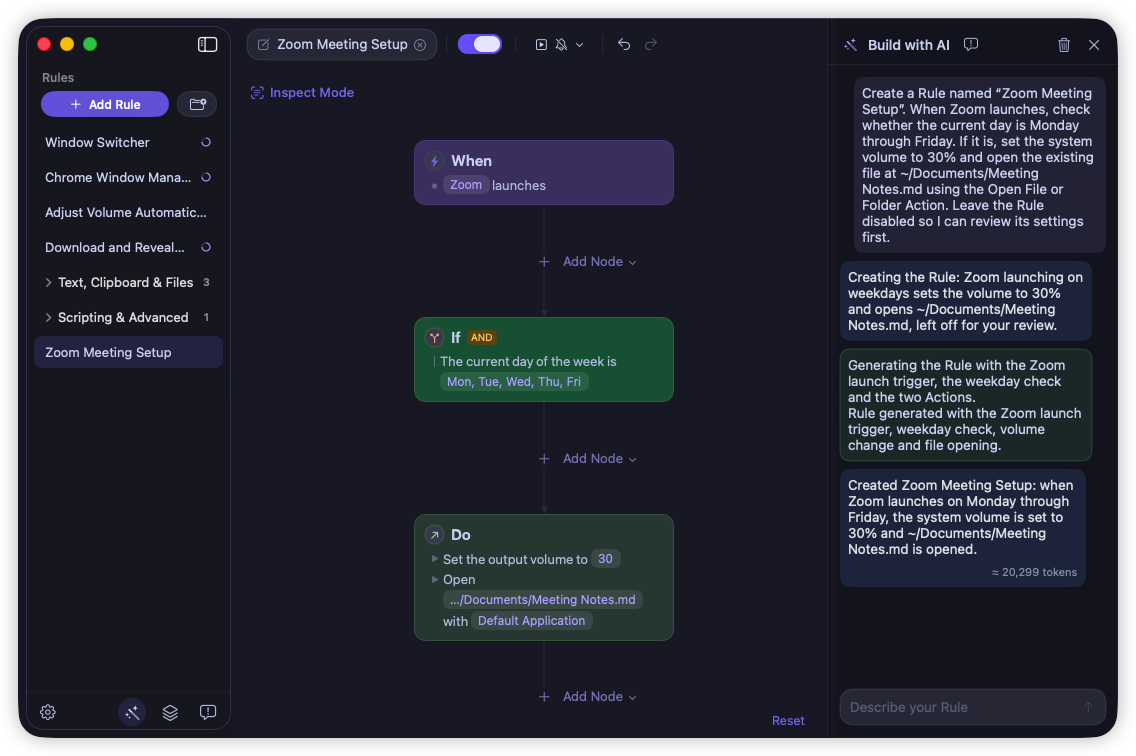
AI Builder creating Zoom Meeting Setup, with the generated When → If → Do Rule on the canvas.
Before you begin, connect a supported AI provider in AI Connection settings using your own API key and choose a model. You can also set a request token limit. Have Zoom installed and the path to an existing meeting-notes file ready. The file will open in its associated app.
1. Describe what you want to automate
Open Build with AI and describe the task:
When I launch Zoom on weekdays, set the system volume to 30% and open the meeting-notes file at ~/Documents/Meeting Notes.md.
This request contains three parts: an app event, a weekday check, and two things to do. Launching Zoom is the Trigger. If you want the Rule to run whenever you switch back to an already running Zoom, specify that instead; becoming frontmost is a different event.
~/Documents/Meeting Notes.md is an example path for this walkthrough; ~ represents your home folder. Replace it in your request with the path to an existing file on your Mac, or select your file in the generated Rule’s settings. Meeting Notes.md is a file name, not an app name; the Action opens that specific file. AI Builder cannot identify your file from “my meeting notes” alone.
2. Let AI build the Rule
Ask AI Builder to create the Rule. The structure you want is:
| Part | Setting |
|---|---|
| When | Application Launched: Zoom |
| If | Current Day of the Week: Monday–Friday |
| Do | Set Volume: 30%, then Open File or Folder: the existing meeting-notes file at your chosen path |
The AI creates a Rule you can inspect on the canvas. Its Trigger defines when it starts, its Condition checks whether today is a weekday, and its Actions set the volume and open the file.
If a parameter cannot be determined, AI Builder creates the Rule with that parameter left blank and lists what still needs configuring. You can reply with the missing details or select the value yourself on the canvas.
Once enabled, that Rule gives Rulr a repeatable workflow for future Zoom launches. You can return to the saved Rule to understand or change how it works.
3. Review it on the visual canvas
AI builds it. You stay in control. Before enabling the Rule, check the generated settings against your request:
- The Trigger selects Zoom and responds to an application launch.
- The weekday Condition includes Monday through Friday.
- Set Volume uses the level you want. Setting it to 30% could raise a volume that is already below 30%, so choose a comfortable fixed level.
- Open File or Folder points to your existing notes file, with the example path replaced by its actual location on your Mac.
- Both Actions sit on the path that passes the weekday check.
You can change parameters, delete an Action, or continue editing manually. For example, if you only want the notes opened, remove Set Volume and keep the rest of the Rule.
The Mac automation guide explains the When → If → Do model in more detail.
4. Refine the Rule through conversation
Keep working on the same Rule and ask:
Only run this between 9 AM and 6 PM. Update this Rule and keep its existing Actions.
Review the change on the canvas. The Rule should now check the weekday and the current time before reaching the two Actions. The Zoom launch Trigger, volume setting, and notes file should still match your earlier choices.
This time check limits when a Zoom launch qualifies. It does not schedule the Rule to run at 9 AM by itself.
Continue with another specific request if needed, such as “Change the volume to 20%.” Each time, inspect the updated Rule so the saved workflow remains the one you intend to use.
5. Test and run
Rulr saves your Rule automatically. Check its configuration, complete any required settings or permissions, and enable it. During the configured weekday work hours, quit Zoom if it is already running, then launch it again.
Check that the system volume reaches your chosen level and the selected notes file opens. Use Inspect Mode to follow the path taken and check step results. If a Condition blocks the Actions or an Action fails, review its settings before trying again.
Also check the boundary: launching Zoom outside the allowed hours should leave the two Actions unexecuted. Testing the real app event checks the Trigger as well as the rest of the workflow.
Once the Rule behaves as intended, leave it enabled for future Zoom launches. You can adjust the hours, volume, or notes file whenever your routine changes.
Understand existing Rules
AI Builder can also help you find and understand Rules you already have. With a Rule selected, ask:
What does this Rule do?
Compare the explanation with its Trigger, Conditions, and Actions on the canvas. This is useful when returning to an older workflow or learning how an imported example works.
Undo AI changes
If an AI edit does not match what you wanted, you can undo it. Ask the assistant to undo its last change, then review the Rule again before running it.
Build your own Mac automation with AI
Start with one recurring task and describe when it should happen, which checks it needs, and what it should do. Follow the same process: Describe → Build → Review → Refine → Run.
For a related example, Open Work Apps uses a shortcut and time Conditions to prepare a workspace. Browse the Rule Gallery for more workflows you can import, understand, and customize.