
Paste without formatting on Mac: shortcuts and fixes
Use Option + V in Rulr to paste without formatting on Mac. Keep Command + V for normal paste, then explore related text cleanup and insertion Rules.
Copied text can bring a webpage’s font, colors, and styling into your document. With Rulr’s Paste as Plain Text Rule, press Option + V (⌥V) to convert copied text to plain text and insert it into the frontmost app. Keep Command + V (⌘V) for normal paste.
Option + V is the shortcut configured in this Rule, not a built-in macOS command. Import and enable the Rule before using it. For a paste without installing Rulr, see the built-in Mac shortcuts below.
Paste without formatting with Option + V
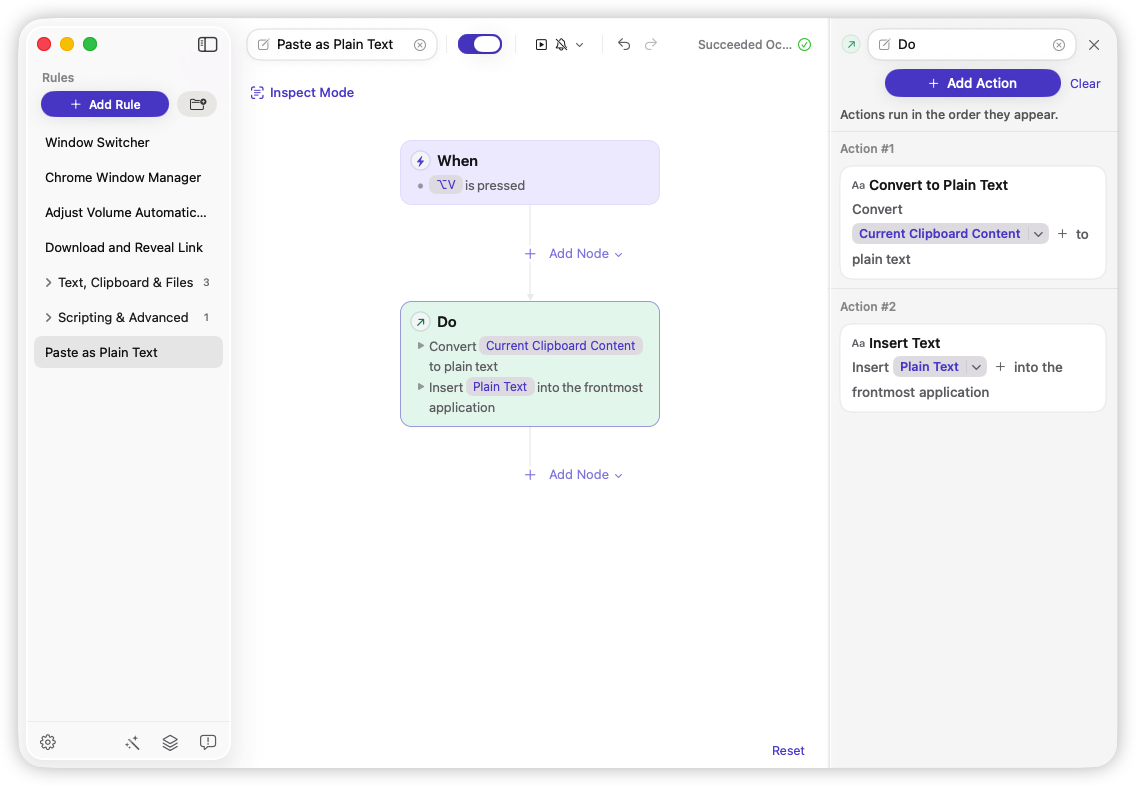
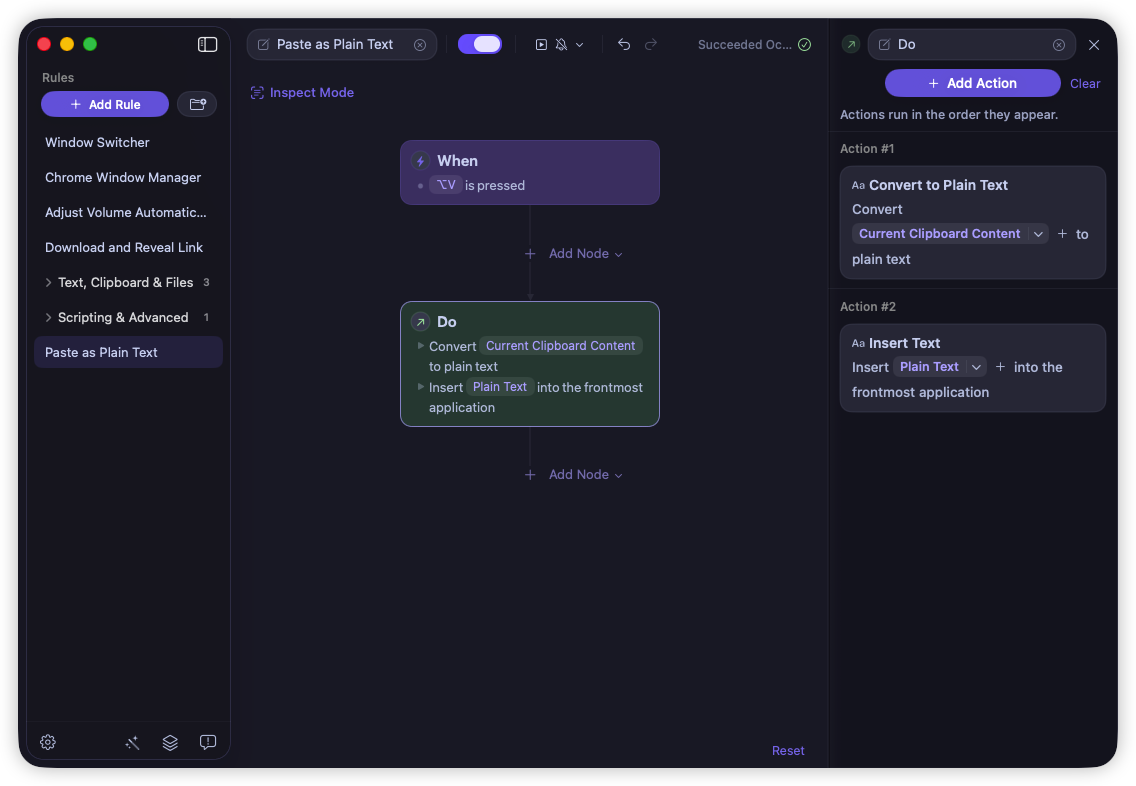
Copy text from a webpage or document, focus the editable field where you want it, and press Option + V. The Rule reads Current Clipboard Content, runs Convert to Plain Text, and passes its Plain Text output to Insert Text. There is no Condition or fixed destination app.
- Open Paste as Plain Text and import the Rule into Rulr.
- Keep Option + V, or choose another shortcut if it conflicts with your keyboard layout or another app.
- Grant Accessibility access and enable the Rule.
- Copy a formatted passage, focus your destination, and press the shortcut. Keep the field focused until insertion finishes, then check the result.
Plain text removes source styling; your destination still controls the font, size, and color. The conversion accepts a single clipboard item containing supported plain text, RTF, or HTML. Content with image or file data, or multiple clipboard items, is not supported.
Insert Text sends keyboard input, so the receiving field must accept it. If nothing appears, check the Rule is enabled, Accessibility access is granted, and the shortcut and input focus are correct. Removing formatting does not clean up PDF line breaks or unwanted spaces inside the text.
Why copied text brings its formatting with it
Copy a paragraph from a website into a document and you may get more than its words: a different font, colored text, bold emphasis, or a background that clashes with the rest of your writing. A normal paste can preserve formatting supplied by the source, depending on what the destination app accepts.
The same copied passage can be available on the clipboard in several representations, such as plain text, HTML, or RTF. Your destination decides what to use during a normal paste. That is why copying the same paragraph into two apps can produce different-looking results.
A plain-text paste carries the words without the source’s rich styling. It is useful when moving research into notes, drafting a reply from copied material, or bringing a passage into a document that already has its own styles. You can keep the destination’s appearance without manually correcting each imported font or color.
Sometimes you do want the original formatting: emphasis in a quotation, a formatted table, or the layout of a passage you are reusing. Keeping normal paste and plain-text paste on separate shortcuts lets you choose for each insertion.
Paste as plain text vs. Paste and Match Style
Paste and Match Style applies the surrounding content’s style, as described in Apple’s copy and paste guide. The Rulr Rule explicitly converts the clipboard content to plain text before inserting it. In either case, the destination can still control how the words look.
Removing styling is one operation. Editing the words or restructuring the text is another:
| What you copied | What to expect from plain-text conversion |
|---|---|
| Text with a source font, color, or bold styling | The words are inserted without carrying that source styling. |
| A styled hyperlink | Plain text cannot retain a clickable link as rich formatting; check whether you need the link’s destination as well as its visible words. |
| Text with line breaks or spaces | Those characters may remain. Plain text is not a whitespace-cleaning mode. |
| An image, a copied file, or multiple clipboard items | This sample does not convert these sources. |
The destination can still apply its current paragraph style or automatically recognize a URL. A blue link or bold-looking insertion is therefore not, by itself, evidence that source formatting survived. Compare the result with the destination’s own style settings.
For example, copying a bold heading into a paragraph that is already bold will still produce bold-looking text. If you want regular body text, change the destination’s style as well. The Rule does not impose a particular font or reset the editor’s formatting controls.
Use it while moving between sources and writing apps
For research notes, copy the passage you need from a webpage, focus your note, and use Option + V. Add the source URL separately if you need a citation: stripping rich formatting is not a citation-capture workflow.
For an email or document draft, use the same shortcut when the copied words should follow the style of the paragraph you are editing. Use Command + V when you intentionally want the destination app’s normal handling of the copied content instead.
For text copied from a PDF, first inspect the words and line breaks. A plain-text conversion can remove styling, but it does not reconstruct paragraphs that were copied one line at a time. That requires a separate text-editing operation.
Check the result in your destination app
Try a short passage with visible source formatting in a temporary document. Paste it normally with Command + V, then copy the source again and insert it with Option + V in a comparable paragraph. Compare the words, line breaks, and appearance before relying on the shortcut in your usual workflow.
Keep the intended app and field focused while the Rule runs. This sample has no app filter and does not switch to a predetermined document. Its insertion Action sends text to the currently focused destination, which must accept simulated text input.
The screenshot shows the configured Rule and its connected Actions. It does not establish compatibility with every editor or demonstrate the resulting text in a destination app. The Rule Detail provides the import entry, exact configuration, and troubleshooting steps.
Built-in ways to paste without formatting
For an occasional paste, your app may already have the command you need:
| Destination | Shortcut and command |
|---|---|
| Apps offering Paste and Match Style | ⌥⇧⌘V — Paste and Match Style |
| Google Docs | ⌘⇧V — Paste without formatting |
| Current Word for Mac | ⌘⇧V — Paste Text Only |
Here, ⌘ means Command, ⌥ means Option, and ⇧ means Shift. Apple documents Paste and Match Style; Google and Microsoft list the commands in their Google Docs and Word shortcut guides. Versions, keyboard layouts, and custom mappings can differ, so check the destination app’s menu if a shortcut does nothing.
If the destination has no suitable command, paste into a temporary TextEdit document, choose Format → Make Plain Text, then copy the converted text and paste it into your destination. If the menu offers Make Rich Text, the document is already plain text. Apple’s TextEdit guide explains the conversion.
Why is paste without formatting not working on Mac?
Why does Command + Shift + V do nothing?
Command + Shift + V is the documented shortcut in Google Docs and current Word for Mac; it is not a universal Mac command. In an app offering Paste and Match Style, check for Option + Shift + Command + V instead. Click inside an editable field and use the app’s menu to confirm the available command.
Why does Option + V not paste plain text?
Option + V only starts this workflow after the Rulr Rule is imported and enabled. Check Accessibility access, confirm that your chosen shortcut is recorded in the Trigger, and look for a shortcut conflict. The clipboard must contain one supported text item, and the destination must remain focused and accept text input.
Can I make Command + V always paste without formatting?
This sample keeps Command + V unchanged and gives plain-text insertion its own shortcut. It does not change every app’s default paste behavior. Reassigning an existing menu command is a different setup and depends on that command being available in the receiving app.
Why do PDF line breaks remain?
A line break is a text character, not a font or color. Plain-text conversion does not reconstruct PDF paragraphs. Trim Text only removes whitespace around the edges of its entered text; it does not repair internal line breaks either.
Which paste method should you use?
Use the built-in command when your destination already offers a convenient Paste and Match Style or text-only paste option. It is a direct way to handle an occasional insertion without setting up a Rule.
Use the Rulr sample when you want a separate shortcut that explicitly converts clipboard text before insertion, with the conversion and its output visible in an editable Rule. Option + V is its starting configuration; choose another combination if your keyboard layout or another app uses it.
Use a text transformation when the problem is in the text itself. Unwanted edge spaces, lowercase headings, and a value that needs URL encoding each call for a different operation. The useful distinction is what you want to change: the source styling, the text characters, or the way the result is inserted.
More Rules for preparing and pasting text
Once the source styling is removed, you may still need to prepare the text itself. Choose the operation that matches the problem: trimming changes the edges of text, uppercase changes its letters, and URL encoding prepares a value for a different syntax. These are separate Rules, not extra behaviors included in Option + V.
- Trim Text: Enter text in a prompt, remove spaces and line breaks from its edges, and copy the cleaned result for pasting. The sample does not automatically read your clipboard or remove line breaks inside a paragraph.
- Uppercase Selected Text: Select text in an editable field, run the shortcut, and replace the selection with its uppercase version. It gets the selection, transforms it, writes the result to the clipboard, and pastes it; the previous clipboard content is replaced.
- Paste URL-Encoded Text: Press Option + E to URL-encode clipboard text and insert the result at the cursor. Use it for a URL value such as a query parameter:
hello worldbecomeshello%20world. - Text Expansion: Type a configured phrase such as
;addrto insert reusable text. Set your own content before using it. The sample has no explicit step to delete the abbreviation, so check whether it remains in your destination app.
All four related samples require Rulr Pro for their transformation or typed Trigger. Review their permissions and shortcut settings before enabling them; their behavior and setup differ from the plain-text paste Rule above.
If you only need plain-text paste, use that Rule on its own. To build a combined workflow later, explicitly connect the desired transformation’s output to the next Action. Importing several separate Rules does not automatically make them run as one chain.