
OCR for Mac: 3 ways to copy text from images and screenshots
Copy text from images and screenshots on Mac with built-in Live Text, a free screen OCR shortcut, or automatic OCR for new image files.
OCR on Mac turns words in an image or screenshot into text you can copy and edit. For an existing image, start with Live Text in Preview. For text visible in an app that you cannot select, use a screen OCR shortcut. For images that arrive repeatedly in a folder, an automated Rule can recognize each matching new file.
This guide covers those three image-to-text workflows. If you need a searchable PDF, a Word document that preserves a scanned page’s layout, or a batch conversion of old files, choose a document OCR workflow designed for that output.
Choose an OCR method for your Mac
OCR stands for optical character recognition. The useful distinction is where the image comes from and what you want to do with the recognized text.
| Your task | Method | Requirements |
|---|---|---|
| Copy a few words from an existing photo or screenshot | Live Text in Preview | Built into supported macOS versions; language and region availability varies |
| Copy text visible on screen with a keyboard shortcut | Rulr’s Copy Text from Your Screen Rule | Free components; macOS 26 or later and Screen Recording permission |
| Extract text when new image files arrive in a folder | Rulr’s Extract Text from New Images Rule | Pro folder monitoring and image OCR; access to the chosen folder |
For a one-off image, try the built-in option first. A reusable shortcut becomes useful when you repeatedly copy text from screen content; folder automation fits an ongoing stream of incoming images.
Free OCR on Mac with Live Text
Live Text lets you select words inside a photo or screenshot in Preview. You do not need to configure a Rulr Rule for this task.
- Open the image in Preview.
- Move the pointer over the words, then drag to select the text.
- Control-click the selection and choose Copy Text.
- Paste into your destination app and check the result.
If selection is unavailable, choose Tools → Text Selection. Apple’s Live Text guide for Preview documents these steps and notes that availability varies by language and region.
Use this path when you want to choose a small passage from an image you already have. It does not create a watched folder or a shortcut that processes whatever is currently on screen.
Screen OCR with a keyboard shortcut
Use screen OCR for words you can see but cannot highlight as ordinary text: an app label, text inside an image, or a screenshot displayed in another app. Rulr’s Copy Text from Your Screen sample connects a hotkey to text recognition and the clipboard.
When: Press Option + Space. Do: Recognize Text on Screen, then copy its recognized Text output to the clipboard. There is no If Condition.
The sample recognizes the full screen. Other visible words may appear in the result along with the passage you wanted. Review the capture target and choose the supported setting that fits your task.
- Download Rulr Free on a Mac running macOS 26 or later.
- Open the screen OCR Rule and select Open this Rule in Rulr.
- Review the capture target and hotkey. Allow Screen Recording; Accessibility is needed if you record a replacement shortcut.
- Display the text, enable the Rule, and press its shortcut.
- Paste with Command + V into a temporary document and review the result.
The sample’s Actions are available without Pro. The OCR result replaces the existing clipboard text; it does not automatically paste, translate, or save the result. Importing and editing this Rule does not require an AI connection.
Check screenshot-to-text results before using them
Try a readable line such as Meeting room B — 10:30. Compare the recognized time, punctuation, and any extra words with the source. Small text, unusual fonts, or a busy layout can produce mistakes; this check does not establish an accuracy guarantee.
Automate OCR for new image files
When new images arrive throughout the day, use Extract Text from New Images instead of opening and capturing each file manually.
This Rule watches a folder, checks incoming filenames against its image filter, recognizes the matching image, and displays the resulting text. It uses the new file’s path, so the image does not need to be open on screen.
Choose the watched folder, review its filename filter, and grant folder access before enabling the Rule. Then add a disposable image to check the result. Folder monitoring and image OCR require Rulr Pro.
The sample handles matching new direct items. Enabling it does not process existing files, recurse through subfolders, or build a text archive. Its Rule Detail contains the configuration and import entry point.
Choose the right OCR Action in Rulr
Rulr has two OCR Actions. Choose the one that matches your input, then pass its recognized text output to the next step.
| OCR Action | Input | When to use it |
|---|---|---|
| Recognize Text on Screen | A configured screen, area, or window | The words are visible in an app and you want to capture them on demand |
| Recognize Text in Image | An image file, the first matching image in a folder, or an Image Variable | You already have an image, or an earlier Action has produced one |
Recognize Text on Screen is available without Pro and requires Screen Recording permission. Recognize Text in Image requires Pro. A workflow that captures a screen first still needs Screen Recording permission even when recognition happens in the image Action.
Image OCR is not restricted to watched folders. You can configure an existing image file directly, or connect an Image Variable from an earlier capture step. The new-image Rule adds a folder Trigger so recognition happens whenever a matching file arrives.
The text can feed another Action: Set Clipboard makes it ready to paste, Show Text or Image opens it for review, and Translate Text produces a translation. Keep the later Action connected to the OCR output rather than entering a fixed example sentence. Translation is a separate step; OCR itself does not change the language.
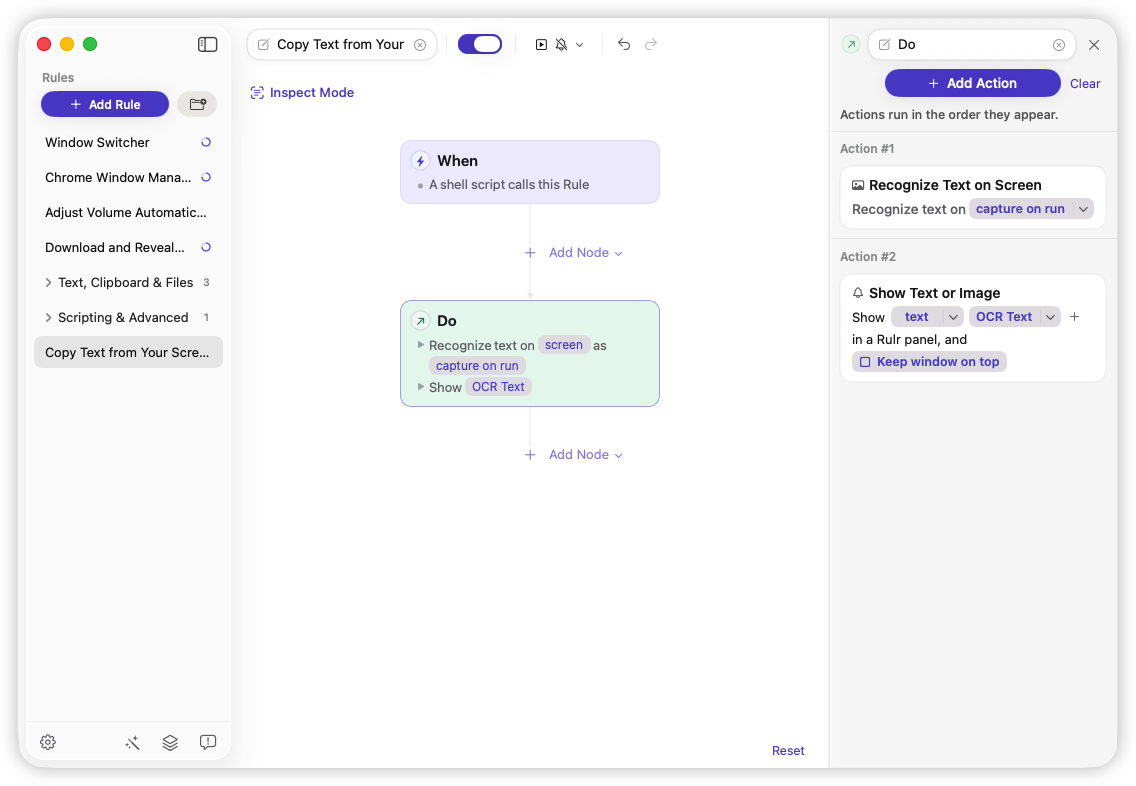
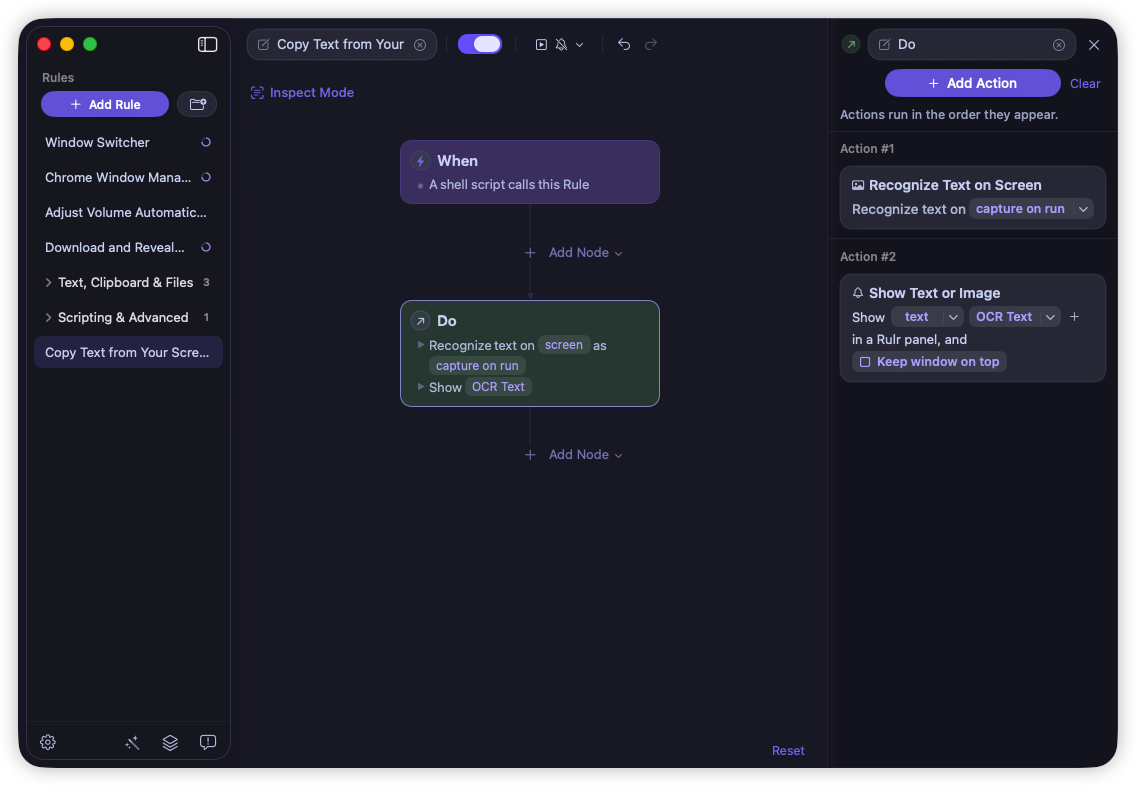
This separate example uses a Shell Script Trigger for manual invocation. Recognize Text on Screen is set to capture on run, so you choose an area when it runs; Show Text or Image then displays the OCR Text output in a Rulr panel. Unlike the hotkey-and-clipboard sample above, this configuration lets you review the text in a panel.
Troubleshoot Mac OCR results
- You cannot select text in Preview: Check Tools → Text Selection and whether Live Text supports the image’s language and your region.
- Screen OCR copies too much: Review the capture target. A full-screen target can include other windows and labels.
- Letters or numbers are wrong: Enlarge the source where possible and compare the recognized text manually, especially names, dates, and reference numbers.
- The hotkey produces no result: Check Screen Recording access, whether the Rule is enabled, and whether another app uses the same shortcut.
- A new image is not recognized: Check the watched folder, filename filter, folder access, and whether the file was newly added.
Common questions about OCR for Mac
Does Mac have built-in OCR?
Live Text provides built-in text recognition for supported images in Preview. Start there for an occasional image-to-text task; use a shortcut or folder Rule when you need a repeatable workflow.
Can these Rules create a searchable PDF?
These examples return recognized text. They do not add a searchable text layer to a PDF, preserve a scanned page’s document layout, or provide a general multipage PDF OCR workflow.
Can I translate the recognized text?
The Translate Screen Text sample connects screen capture, image OCR, translation, and display. It uses Pro components and requires Screen Recording and its configured translation method. Review that Rule’s requirements before enabling it. If the source text can already be selected normally, copy it directly to avoid an OCR step.
For a screen shortcut, start with the free screen OCR Rule. For incoming files, choose the watched-image Rule. The Mac automation guide explains how to connect recognized text to later Actions.