
Media Playback Control on Mac: Your Players in One Panel
Choose which app or Chrome tab to play or pause from one Mac media control panel. Explore Rulr Media Manager and compare BeardedSpice alternatives.
Music in one app, a video in Chrome, and a local movie in another player: which source do you want to pause? Media playback control on Mac can mean choosing between those sources from one panel, without switching to each player or browser tab.
Rulr’s Media Manager brings detected app and browser media sources into one panel. Open it with a keyboard shortcut, choose the song or video you want, and press Space to play or pause when control is available.
If you are looking for a BeardedSpice alternative for choosing a playback source, this guide explains Rulr’s panel and compares the two approaches. Rulr’s Media Manager lets you select a detected source and play or pause it; compatibility depends on the app or website.
What do you want your media controls to do?
Before choosing a Mac media controller, consider the moment when you reach for a control. Are you trying to pause your usual music app, pick between two browser videos, or find something you paused earlier?
Choose between several media sources
If you regularly move between music, browser videos, and a local player, you may want to see the available sources before choosing one. Here, the useful features are recognizable titles, separate browser-tab entries, playback indicators, and a quick way to select a row. This is the task Rulr’s Media Manager is designed around.
Return to something you paused
A list containing only currently playing sources can lose the item just when you want to resume it. Check how a tool handles paused players, closed tabs, and applications that have restarted. In Rulr, a source observed during playback can remain after pausing, but a player already paused before discovery may be missing. Source memory lasts for the current Rulr session and depends on the owning application remaining open.
BeardedSpice alternatives for Mac media control
BeardedSpice connects Mac media keys to web players and some native apps. Its menu lets you choose a source, while Smart Mode tries to select a player automatically. Website-specific strategies provide controls such as play/pause, track navigation, and, on some services, favorites.
If BeardedSpice is not working with your current setup, its README points to a maintenance discussion. Maintainers describe the work involved in validating website strategies and keeping them working as sites change. A BeardedSpice replacement should be judged against the apps, browsers, and controls you actually use rather than an old supported-sites list.
These tools address related needs with different controls and setup requirements. This comparison follows their published documentation and Rulr’s current implementation; it is not a compatibility test across every listed player.
| Tool | Main approach | What to check before choosing |
|---|---|---|
| BeardedSpice | Media keys control a selected player; Smart Mode can choose automatically | Whether its browser integration and site strategies still work for your setup |
| Beardie | A BeardedSpice fork with media-key control for native and web players | Browser extensions are required for web players; its README currently notes that new releases with fixes are not being built because the developer’s Apple Developer subscription expired |
| Reflex | Direct media keys to Apple Music, Spotify, Doppler, or VOX | A focused option if you want to keep the keys assigned to one of those music apps |
| Rulr Media Manager | Open a panel, select a detected source, and press Space for available play/pause control | Requires macOS 26 or later; app and website compatibility varies, and Safari playback control is unavailable |
Rulr’s overlap with BeardedSpice is choosing a media source and playing or pausing it. Hardware media-key routing and track navigation belong to the other tools’ feature sets in this comparison; Rulr’s Media Manager does not provide them.
Beardie is worth examining if you want an approach descended from BeardedSpice, including browser-player support. Check its extension setup and release instructions before committing to it. Reflex offers a narrower choice: its published player list makes it easier to judge whether your regular music app fits, but it is not presented as a general browser-tab picker.
Rulr suits someone who wants an explicit choice of source and may also use other Mac automation features. You install Rulr and enable a Rule to open the panel; Media Manager is an included feature rather than a separate download. There is no need to configure an AI provider for this workflow.
A media control panel inside Rulr
Rulr is a Mac automation app. Show Media Manager is one of its Actions, and Media Manager is the panel it opens. The example Rule connects a keyboard shortcut to that Action, so you can bring up the panel while working in another app.
The panel lists detected sources with titles when available. It can distinguish supported browser media pages rather than showing only a single browser entry, and it remembers observed sources after they pause. Use Up and Down to choose an entry, Space to play or pause when supported, and Escape to close the panel. Clicking an entry selects it without changing playback.
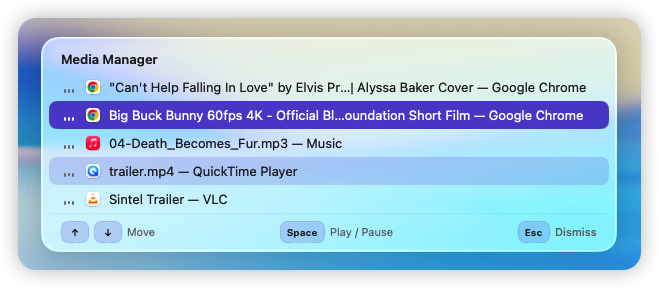
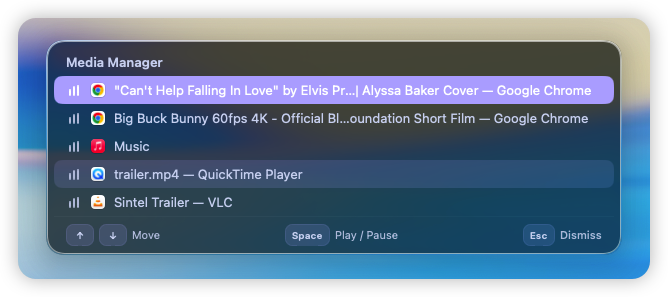
The screenshots show two Chrome media pages alongside Music, QuickTime Player, and VLC in one setup. They illustrate the panel’s layout and source selection; they are not a supported-app catalog or a promise that every version of those apps behaves the same way.
The sample uses Option + M. You can change that shortcut after importing. The Rule does not need a Condition or an AI connection, and its Trigger and Action are available without Pro.
The Media Manager Rule includes the import link, permission setup, and steps for checking it with your own players.
Everyday ways to use the panel
Move between music and a browser video
Suppose you are listening to music and want to watch a video. Open the panel, select the music source, and pause it when control is available. Choose the video source when you want to control that instead. Selection stays explicit: opening the panel alone does not change playback.
This is a manual handoff. The sample Rule does not automatically pause music when a video starts, and selecting one source does not silence all the others.
Control Chrome media playback without switching tabs
You might have a lecture in one tab and a music video in another. Separate media-page entries let you choose by the available title instead of treating Chrome as a single player. Rulr needs to discover those pages first, and some web players do not expose the media elements needed for this control.
If your goal is to bring a particular page forward rather than change playback, the Chrome window and tab manager handles that navigation task separately.
Resume a local video after a break
An observed local player can remain listed after pausing, making it possible to choose it again from the panel. Keep the application and media document open while checking this behavior. Quitting the app or replacing the document changes the source you are trying to return to; the panel is not a saved playback history.
Will it work with my apps and browser tabs?
There is no universal supported-app promise. A source can be detected without exposing a usable playback control, and an app’s behavior may change between versions. Try discovery, pausing, and resuming separately with your own setup.
- Native apps: Available titles and controls depend on the media information and playback controls the app exposes. Some playback paths need Accessibility access.
- Chrome: Media-tab discovery and play/pause need Automation access and Allow JavaScript from Apple Events. Custom or embedded web players may not be accessible.
- Safari: Media tabs may be discovered with the required permissions, but play/pause control is currently unavailable.
- Paused sources: Previously observed sources can remain in the panel. A player that was already paused before Rulr discovered it may not appear.
An entry in the list is not a certification that every playback feature works. Start with a player you use daily and check both pause and resume before making it part of your routine.
If your app is not detected or cannot be controlled, contact support@rulr.app with the app name, version, and what happens when you try.
Check your setup before switching
Start with one native player and one Chrome media page. Let each actually play, open Media Manager while playback is active, and wait for the sources to appear. Then try pausing and resuming them individually. Once that works, add a second media tab and check that you can distinguish the two titles.
This order matters: loading a song or video is not the same as playing it. A buffered, muted, or never-played page may not enter the list. If you pause everything before the panel has observed playback, you may see fewer sources than expected.
| What you notice | What to check |
|---|---|
| An expected source is missing | Start playback in that app or page, then open the panel while it is playing. A previously unseen paused source may not be discoverable. |
| An app appears without a track title | The app may expose playback information without a usable title. Match it by app name and check its controls separately. |
| Chrome media tabs are absent | Review Chrome Automation access and Allow JavaScript from Apple Events, and check whether the page uses an accessible media player. |
| A source appears but Space does not control it | Discovery and playback control have different requirements. Follow any permission guidance shown in the panel; some sources remain unavailable for control. |
| Safari appears but cannot be paused | Safari tab playback control is currently unavailable in Rulr. Use the page’s own controls. |
The Rule Detail contains the setup steps. Keep your existing controls available until you have checked the small set of players and sites you actually use; there is no need to test an entire app catalog to decide whether the workflow fits you.
Is a media controller the same as an audio mixer?
A playback controller changes whether media is playing or paused. An audio mixer changes how loud an app sounds, whether it is muted, or where its audio is sent. If you want a video to keep running silently, pausing it is a different operation from muting its output.
Media Manager focuses on source selection and available play/pause control. For choosing speakers or headphones, see Switch Audio Output. For applying a volume level after an output-device change, see Set Volume by Audio Device. Those Rules address separate audio tasks; the Media Manager sample does not include them.
Try it with your players
Start a song or video, open the Media Manager Rule, and follow its setup instructions. Once imported and enabled, the shortcut opens the panel so you can check which sources and controls are available on your Mac.