
Mac Automation Made Easy with Visual Rules
Automate your Mac with visual rules for files, apps, text, browsing, windows, devices, and system events. Explore practical Mac automation examples.
What is Mac automation?
Mac automation connects a trigger to an action. A keyboard shortcut can open a workspace, a new download can be moved to the right folder, or selected text can be translated without switching apps.
The value goes beyond saving repeated steps. A Rule can notice when a file arrives, an app opens, a device changes, or the battery reaches a set level, then handle the next step for you. This makes daily routines easier to keep consistent.
Shortcuts and AppleScript are built into macOS. Rulr is a visual Mac automation app that lets you see how a workflow is put together and change it without digging through a hidden sequence of commands.
How Rulr automates your Mac
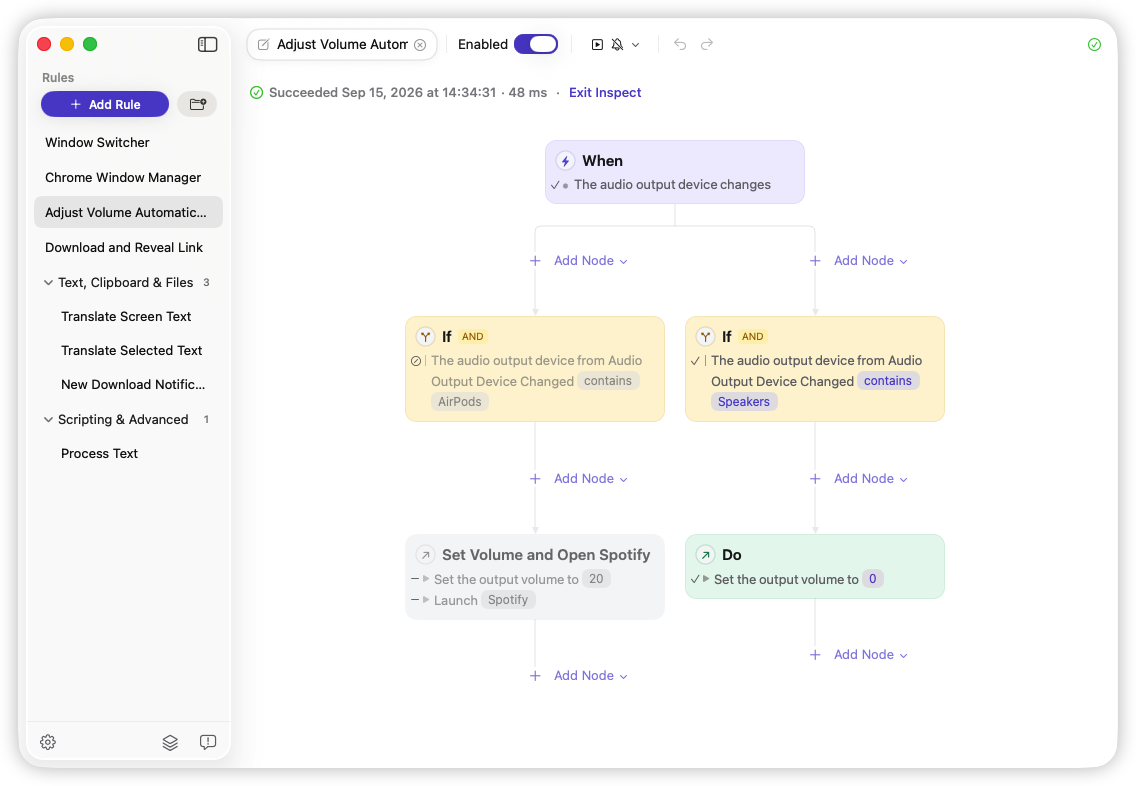
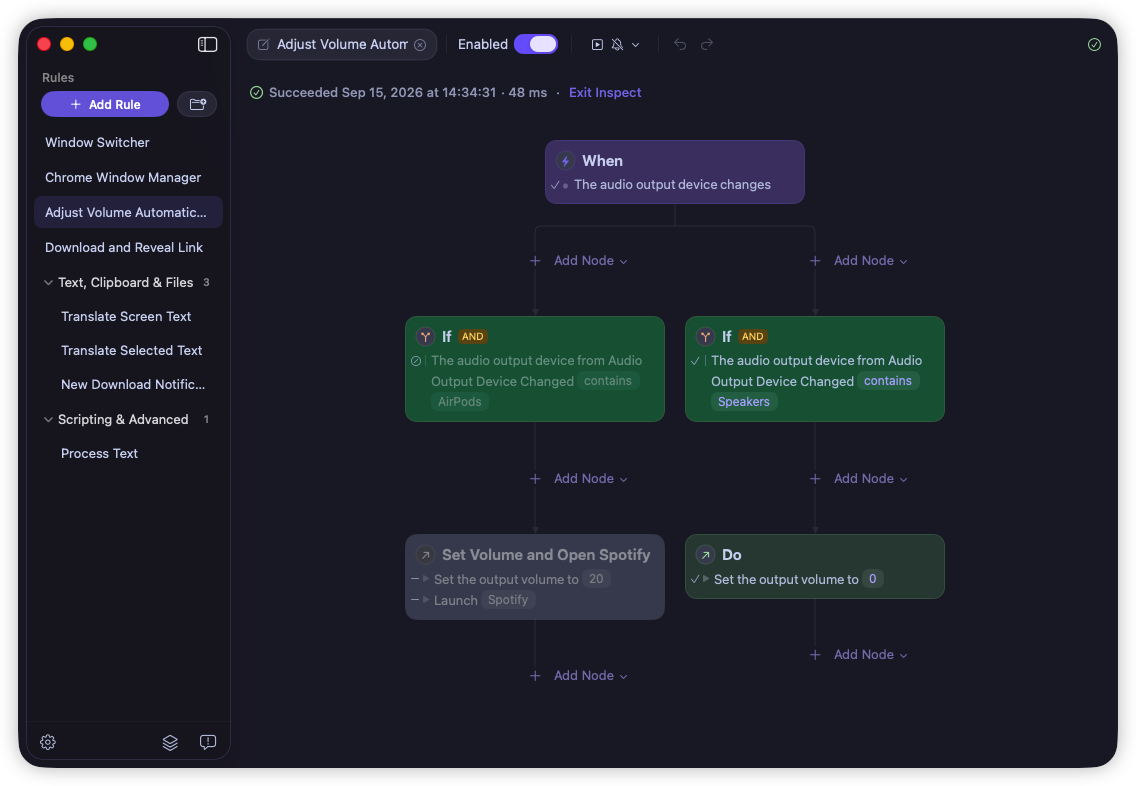
Rulr turns automation into a path you can read from top to bottom. When defines the Triggers that can start a Rule. If is optional, using Conditions and Variables to decide whether and how the Rule continues. Do contains the Actions that perform the automation.
A simple Rule can connect one Trigger directly to an Action. More advanced Rules can use Conditions and Variables to make decisions, follow different paths, and pass results from one Action to the next. The When → If → Do structure stays the same as the workflow grows, making even more complex automations easier to understand and modify.
What you can automate with Rulr
Rulr gives you a library of Triggers, Conditions, Variables, and Actions. Combine them for a quick task or connect them into a larger workflow.
Triggers cover the moments that can begin a Rule, from a keyboard shortcut or schedule to a change involving an app, window, file, device, network, power source, or script.
Conditions work with Variables from the current Mac state or values produced by a Trigger or Action. Multiple checks can be combined to choose the path that matches the current context.
Actions do the work. They can open or control apps and windows, manage files, process text and images, interact with browsers, run scripts, change system settings, and show feedback. Chain Actions together when one step should pass its result to the next.
Explore the Rulr capability library to discover what Rulr can do and combine its capabilities into Rules that fit the way you use your Mac.
Mac automation examples
These Rules show how the same When → If → Do model can solve different tasks across files, text, apps, browsers, Shortcuts, power, and audio.
- Automatically Sort Downloads on Mac — Sort new images, PDFs, and archives from Downloads into separate destination folders.
- Translate Selected Text on Mac — Translate selected text and display the result without leaving the app you are working in.
- Extract Text from Images on Mac — Extract text from new images added to Downloads and display the recognized text.
- Open Work Apps Automatically — Open a chosen group of work apps with one keyboard shortcut during selected work hours.
- Search Chrome Windows and Tabs — Search open Chrome windows and tabs, then switch directly to the page you need.
- Watch a Folder and Run a Shortcut — Run an Apple Shortcut when a watched folder changes.
- Get a Low Battery Alert — Show and speak a warning when your Mac battery falls to a chosen level.
- Set Volume by Audio Device — Set different Mac volume levels when the audio output changes between AirPods and speakers.
Browse the Rule Gallery for examples close to your goal, then adjust them to fit your Mac. You can also start from a blank canvas and build a Rule from scratch.
Frequently asked questions
Can I automate my Mac without coding?
Yes. Most Rulr Rules are built visually by combining Triggers, Conditions, and Actions. Optional advanced Actions can run AppleScript, Shell scripts, browser JavaScript, and Apple Shortcuts when you need more control.
Can Mac automations run in the background?
Yes. Rulr Rules can start from schedules and events such as file changes, app activity, connected devices, and power changes. Once a Rule is enabled, Rulr listens for its Triggers and runs the matching workflow automatically.
Can I combine Apple Shortcuts and AppleScript in one workflow?
Yes. Rulr Actions can run Apple Shortcuts and AppleScript alongside other Actions in the same Rule. This lets you reuse existing scripts and shortcuts inside a larger visual workflow.
Start automating your Mac with Rulr
Make everyday work on your Mac easier with visual Rules you can understand and customize, whether you begin with a ready-made example or a blank canvas.