
A Visual Keyboard Maestro Alternative for Mac
Looking for a Keyboard Maestro alternative for Mac? Rulr offers a visual way to build and inspect automations for files, apps, text, browsers, devices, and more.
What is Keyboard Maestro?
Keyboard Maestro is a Mac application for automating tasks on your Mac using macros. A macro is activated by one or more triggers and can contain any number of actions, including decision-making and branching when needed.
Its strength is depth. A macro might start with one keyboard shortcut or grow into a larger workflow that controls apps, processes text, and performs system actions. That flexibility allows Keyboard Maestro to handle both simple tasks and detailed, multi-step automations.
Rulr vs Keyboard Maestro
Keyboard Maestro organizes automation as macros, while Rulr organizes automation as visual Rules. In Rulr, each Rule follows a When → If → Do structure, keeping its Triggers, optional Conditions, Variables, branches, and Actions visible as the workflow grows.
The two apps handle inspection differently too. Keyboard Maestro uses a separate Macro Debugger, where you can pause a macro and step through it, with logs available when something goes wrong. Rulr keeps run details on the Rule canvas instead. Open Inspect Mode and you can follow the branch it took and check step results without leaving the Rule.
If you prefer to build, read, and inspect an automation in one visual flow, Rulr offers a different approach while covering many of the same kinds of Mac automation tasks.
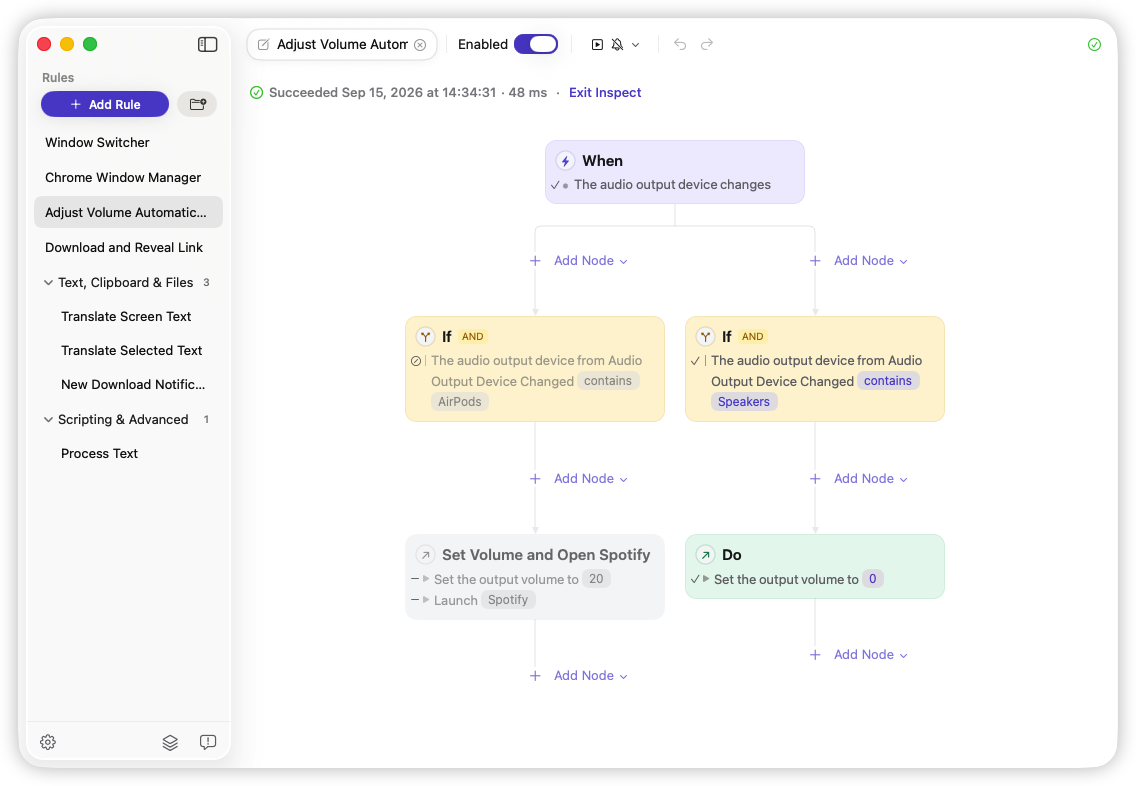
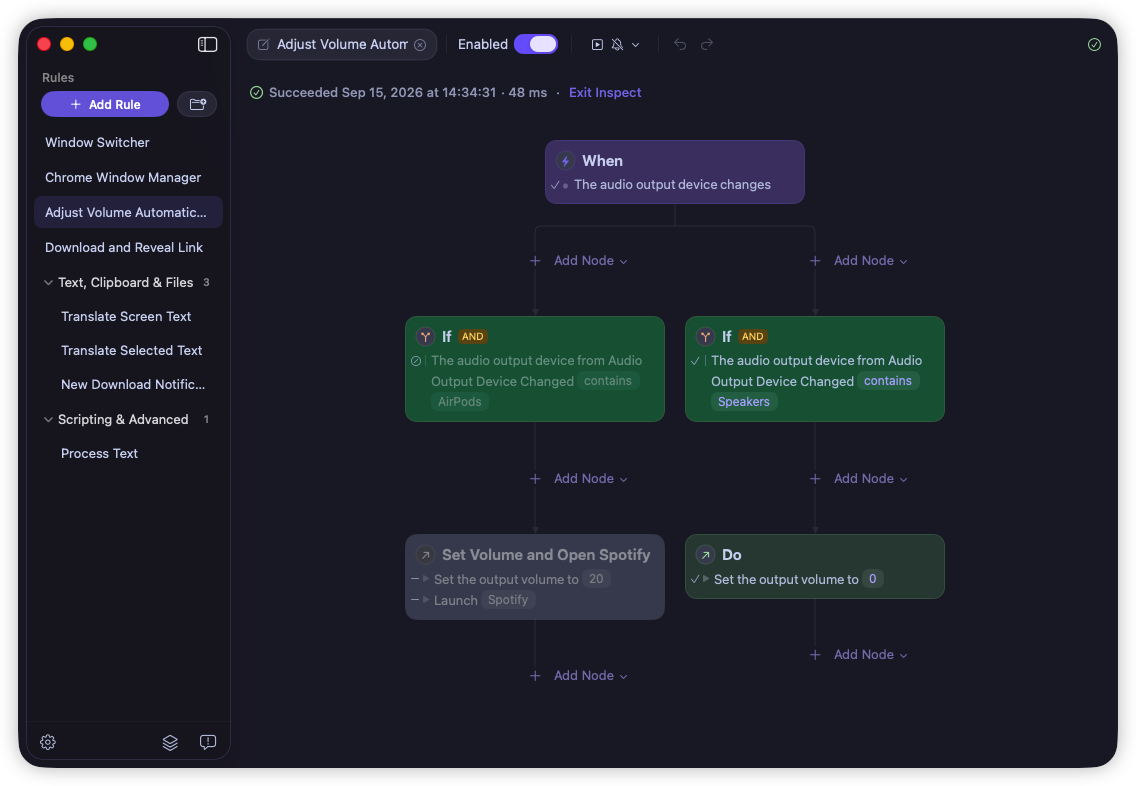
The same differences carry through to how each app handles the rest of an automation. Here is how Rulr and Keyboard Maestro compare across workflow structure, branching, data, triggers, scripts, run inspection, and licensing.
| Rulr | Keyboard Maestro | |
|---|---|---|
| Workflow model | Visual When → If → Do Rules | Macros with Triggers, Actions, and control flow |
| Branching | Branches shown on the Rule canvas | Control-flow Actions inside a macro |
| Variables and data | Trigger outputs and Action results can be used by Conditions and later Actions | Variables and tokens can be used throughout a macro |
| Hotkeys and events | Hotkeys, schedules, files, apps, devices, system events, and more | Hotkeys and a broad range of macro triggers |
| Scripts and Shortcuts | AppleScript, Shell scripts, browser JavaScript, and Apple Shortcuts | AppleScript, Shell scripts, browser JavaScript, and Apple Shortcuts |
| Run inspection | Inspect Mode shows the path, step details, and values used, while Log View keeps a broader execution history | Macro Debugger and logs |
| Free access | Free version with optional Pro upgrade | Free trial before purchasing a license |
| Licensing | Optional one-time Pro purchase | One-time purchase for the current major version |
Which one is right for you?
Rulr is not designed to copy every part of Keyboard Maestro. They suit different ways of working, so the choice depends on how you like to build and manage automations.
Keyboard Maestro has a deep feature set, a large library of Actions and Triggers, and a macro system refined over many years. It makes sense if you already depend on complex macros, need capabilities that Rulr does not yet provide, or prefer its established ecosystem.
Rulr takes a more visual approach. A Rule keeps its Triggers, Conditions, branches, Variables, Actions, and run details in a When → If → Do structure. This works well when you want the logic to remain visible as a workflow grows and prefer to build and inspect it on the same canvas.
You do not have to choose only one. Keep the Keyboard Maestro macros that already work for you, and try Rulr for a workflow that feels easier to express as a visual Rule. Rulr Free gives you room to build a few Rules and see which approach feels more natural.
Mac automation examples with Rulr
These Rules show how Rulr applies its visual model to practical workflows across files, text, apps, browsers, Shortcuts, and audio.
- Automatically Sort Downloads on Mac — Route new images, PDFs, and archives from Downloads into separate folders.
- Translate Selected Text on Mac — Translate selected text and show the result without leaving the app you are using.
- Open Work Apps Automatically — Open a chosen set of work apps with one keyboard shortcut during selected hours.
- Search Chrome Windows and Tabs — Search open Chrome windows and tabs, then switch directly to the page you need.
- Watch a Folder and Run a Shortcut — Run an Apple Shortcut when the contents of a watched folder change.
- Set Volume by Audio Device — Apply different volume levels when the audio output changes between devices and open Spotify when needed.
Explore all Rulr capabilities to see the available building blocks, or browse the Rule Gallery for more examples.
Frequently asked questions
Is Rulr a replacement for Keyboard Maestro?
Rulr can replace Keyboard Maestro for some workflows, but it is not intended to reproduce every Keyboard Maestro feature. Whether it can replace Keyboard Maestro for you depends on the Triggers, Actions, scripts, and other capabilities your macros use.
Can I recreate Keyboard Maestro macros in Rulr?
Some Keyboard Maestro workflows can be rebuilt in Rulr. More complex macros may depend on Keyboard Maestro features without a direct equivalent, so it comes down to what each macro does.
Is Rulr free to try?
Yes. Rulr has a free version for everyday Mac automation.
Try a visual alternative to Keyboard Maestro
Try Rulr with a ready-made Rule, or open a blank canvas and build one around the way you use your Mac.