
AutoHotkey for Mac: alternatives for shortcuts and automation
Moving from AutoHotkey to Mac? Compare options for key remapping, scripted hotkeys, and visual workflows, with a plain-text shortcut example.
AutoHotkey is a Windows automation tool, so its scripts do not run natively on macOS. On a Mac, the right alternative depends on the task: remapping a key, launching an app with a hotkey, or rebuilding a longer macro may call for different tools.
This guide is published by Rulr. We compare Mac options and show three keyboard workflows you can try in Rulr. Rulr does not import AutoHotkey scripts; you need to rebuild the task as a Rule.
Choose an AutoHotkey alternative for Mac
| Your task | Starting option | What to check |
|---|---|---|
| Assign a key combination to an existing menu command | macOS App Shortcuts | The command must appear in an app menu; this method cannot create a general task such as opening an app. |
| Remap keys or change modifier behavior | Karabiner-Elements | Designed for keyboard customization; check its device and key limitations. |
| Write Mac automation in code | Hammerspoon | Uses Lua scripts and macOS APIs; it does not run AutoHotkey scripts. |
| Combine actions provided by your apps | Apple Shortcuts | Check that your apps expose the actions and inputs the shortcut needs. |
| Build a visual hotkey or event-driven workflow | Rulr | Requires macOS 26 or later. Some components require Pro; check the Rule details for each task. |
| Build a more elaborate macro | Keyboard Maestro | It is a paid Mac app with a trial. Check its actions and triggers against your script before switching. |
Apple documents app-specific keyboard shortcuts and creating a Shortcut. For an in-depth comparison of Rulr and Keyboard Maestro, see Keyboard Maestro alternatives for Mac.
Which option should you start with?
For a key remap such as making Caps Lock act as Control, start with Karabiner-Elements. For a menu command already present in an app, try the built-in macOS App Shortcuts setting. Neither requires you to rebuild a larger workflow first.
For a sequence of actions, Apple Shortcuts is worth checking when the apps involved expose the actions you need. Hammerspoon is a closer fit for someone comfortable writing and maintaining scripts. Rulr offers a visual editor for hotkeys and event-driven Rules; Keyboard Maestro is another option for building Mac macros. Check the exact actions your task needs before choosing.
Recreate a plain-text shortcut on Mac
Suppose your Windows workflow turns copied formatted text into plain text before inserting it. On a Mac, first check whether the destination app already offers Paste and Match Style. The shortcut differs between apps; the paste without formatting guide lists the common options for Google Docs, Word, and other destinations.
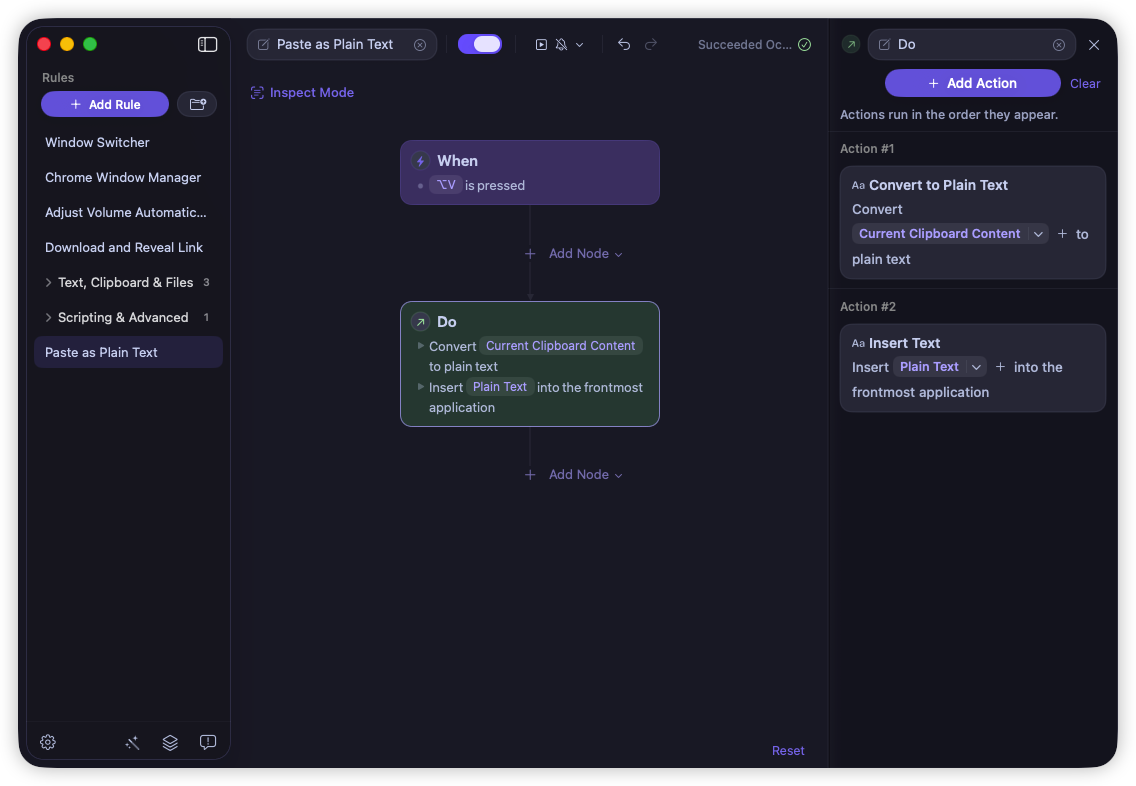
For a separate Rulr shortcut, open Paste as Plain Text and select Open this Rule in Rulr. The sample uses Option + V to convert the current clipboard content, then inserts the plain-text output into the frontmost app.
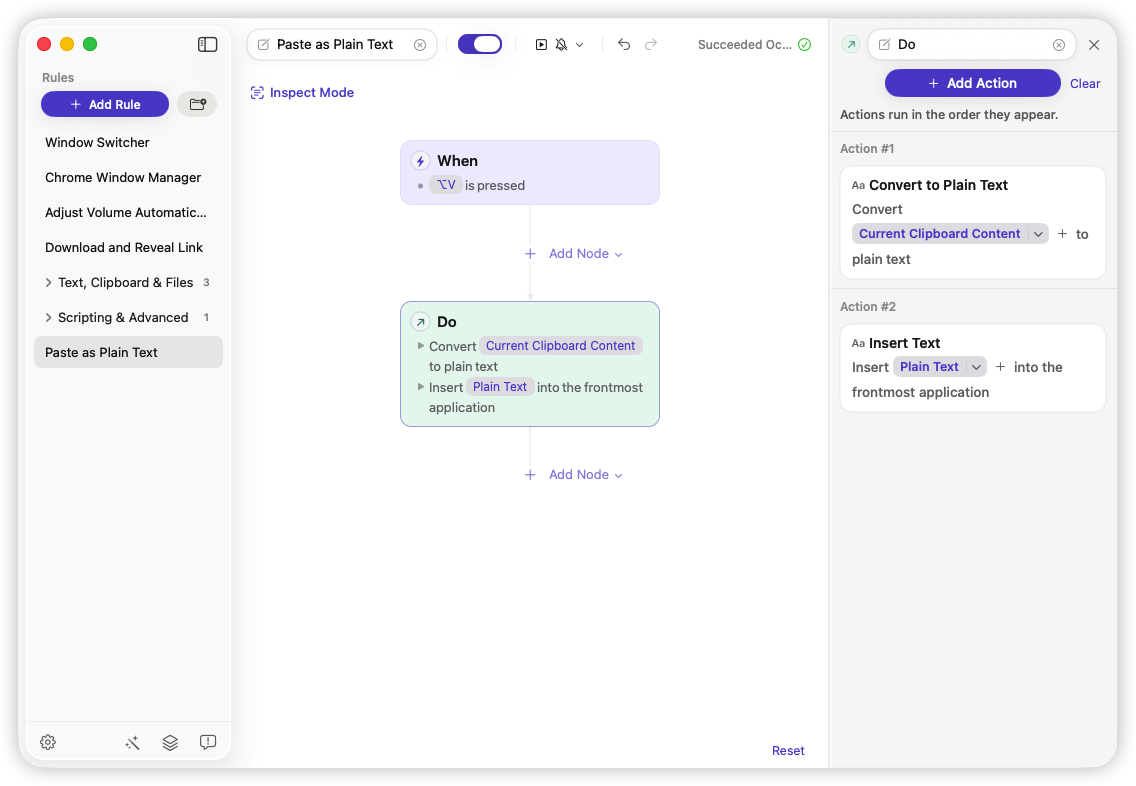
- Review the shortcut after import and choose another one if Option + V conflicts with an app or your keyboard layout.
- Grant Accessibility access and enable the Rule. Copy a formatted passage from a webpage.
- Click in a temporary editable document and press the shortcut. Check both the text and the destination’s styling.
The Rule accepts one supported text, RTF, or HTML clipboard item. It does not process copied images or files, remap Command + V, or remove formatting applied by the destination. The Rule details explain its limits and permissions.
Move a window with a shortcut
A window-positioning hotkey is another common task to bring over from Windows. Move Window to Left Half uses Option + Left Arrow to move and resize the focused window to the left half of its current screen. The preview shows the hotkey and the layout Action; there is no Condition in this example.
Import the Rule, review the hotkey, and grant Accessibility access. Focus a resizable window in another app before pressing the shortcut. To make a different arrangement, choose another preset in Set Window Layout and assign an available shortcut.
The result depends on the target app allowing its window to move and resize. Full-screen windows are not supported, and this Rule does not continuously tile the rest of the desktop. For an out-of-the-box snapping tool, compare the options in the Mac window manager guide. To choose among open windows rather than resize them, try Window Switcher.
Turn on Mac Dark Mode from the keyboard
A small system setting is another good first task to move from a Windows hotkey. The keyboard dark mode Rule uses Option + D to set macOS appearance to Dark. Its Hotkey Pressed Trigger leads directly to Set System Appearance; there is no Condition or second Action.
Import the Rule, check that Option + D is free on your Mac, and confirm that the Action is set to Dark. Allow System Events Automation access when macOS asks. Start in Light appearance, press the shortcut, and check an app that follows the system theme. A second press leaves Dark appearance on: this Rule does not toggle back to Light, change an app’s separate theme setting, or control a physical keyboard’s backlight. The Rule details cover setup and permissions.
Rebuild an AutoHotkey workflow on Mac
Start with one small task and write down its hotkey, app context, expected output, and any data or windows it changes. Then check whether the native tool exposes each required step. An AutoHotkey script’s Windows-specific commands, key names, and app integrations do not automatically become Mac equivalents.
For a different way to find a window, Window Switcher opens a visual picker. Compare these approaches with dedicated tools in the Mac window manager guide.
If the shortcut does nothing, check that the Rule is enabled, Accessibility access is granted, and another app is not using the same combination. For text insertion, make sure the destination field is editable and remains focused.
For a broader range of starting events and Actions, read the Mac automation guide or compare Mac macro software.
Explore more Mac shortcuts
Start with a single task, then browse the Gallery for Rules you can adapt. Each page shows what the Rule does and what to configure.